How to Choose a Gaming Mouse for Your Needs

Choosing a gaming mouse is less about impressive specifications and more about finding a comfortable match for your hand and games. The right Mouse Gaming choice should feel natural during a long session, not merely look advanced on a product page. Start with grip style, hand size, and the movements you make most often. A compact, lightweight mouse may suit quick aiming, while a fuller shape can feel steadier for broader hands. Comfort comes first.

Consider how you play. Competitive shooters often benefit from a reliable sensor, low weight, and a shape that supports controlled, repeatable movements. Strategy games and complex role-playing games may make extra programmable buttons more useful. Check whether the mouse is wired or wireless, and compare connection reliability, battery life, and charging needs. High DPI numbers alone are not proof of better tracking; many players use a modest setting that feels consistent. Small details matter.

Before buying, read independent reviews that describe testing conditions, not just feature lists. If possible, hold the mouse or check its dimensions against a model you already like. Buttons should be easy to reach without shifting your grip, and the scroll wheel should feel precise rather than loose. No guide can identify a perfect fit for every hand. Personal preference can be inconvenient, and even careful comparisons leave room for uncertainty. Treat specifications as a starting point, then prioritize comfort, dependable performance, and a price that makes sense for your use.
How to Choose a Gaming Mouse for Your Needs

Identify Your Gaming Needs and Play Style

Start with the games you play most, not the mouse features that sound impressive. Competitive shooters often reward quick, repeated movements, so a lighter mouse may feel easier to control. Strategy games can involve long sessions and frequent clicks, making comfort and reliable buttons more important. Different needs. If you switch between genres, choose for the game you play most—or accept a practical compromise.

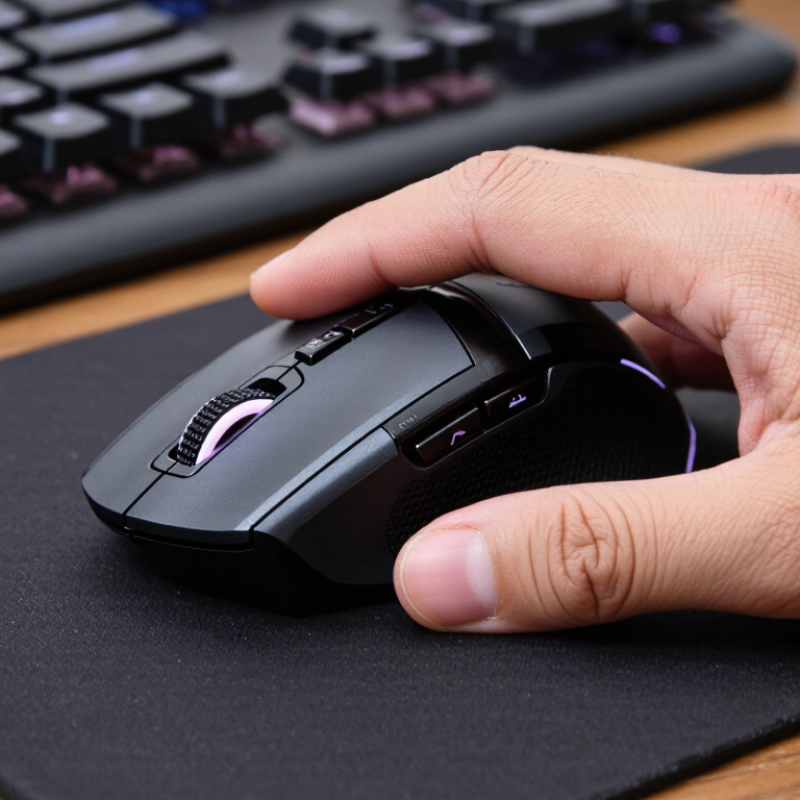
Your grip and hand size matter, too. Measure from your wrist crease to your middle fingertip, then compare how different shapes sit in your hand. A palm grip usually needs fuller support; claw and fingertip grips may feel better with a shorter or narrower body. Specs cannot tell you whether an edge presses uncomfortably near your thumb. It is easy to overvalue low weight, then notice that the shape tires your hand. That deserves a second look. Wired or wireless is a preference, not a measure of skill.

Tips: Track your comfort during a normal session. Notice wrist tension, missed side buttons, and whether the mouse shifts during quick turns. If possible, test its shape before buying. Small differences can matter, though preferences vary.

Match Mouse Shape and Size to Your Hand and Grip

A mouse should fit your hand before its shape looks appealing. The U.S. Army’s 2012 ANSUR II survey recorded 93 body measurements from 6,068 service members, including hand length and breadth. That is a useful reminder: hands vary, though soldiers are not a representative sample of all gamers. Measure from your wrist crease to the tip of your middle finger, then compare that length with the mouse’s usable surface. A very small mouse can make your fingers bunch up. A tall shell may press into your palm.

Grip changes the fit. Palm users often prefer a fuller back that supports the hand, while claw users may want a shorter body and a raised rear. Fingertip users usually need room to steer with their fingers without dragging the palm. Try each grip with your wrist straight and the mouse close to your keyboard; OSHA workstation guidance recommends these neutral, reachable positions. Test small movements, quick turns, and a relaxed click. Notice pressure, not just speed. The test is imperfect: a shop trial cannot mimic a long gaming session, and I would not trust one comfortable minute as proof. A little awkwardness matters.

Compare Sensor Accuracy, DPI, and Polling Rate

How to Choose a Gaming Mouse for Your Needs

Sensor accuracy matters more than a headline DPI figure. DPI describes how far the cursor moves for a given hand movement; it does not prove accurate tracking. Independent testing, including RTINGS’ mouse sensor measurements, examines factors such as CPI deviation and sensor latency. These details help reveal whether a sensor tracks consistently across slow and fast swipes. A useful desk test: move the mouse slowly across a mouse pad, then make a quick turn. Watch for skips or unwanted cursor drift. Small flaws can be easy to miss.

Polling rate is the number of position reports sent each second. The USB-IF HID specification describes interrupt-transfer intervals; at 1,000 reports per second, the interval is 1 millisecond, compared with 8 milliseconds at 125 Hz. That difference is measurable, but it may not feel dramatic in every game. Higher polling can also use more system resources. DPI is adjustable, too: a very high setting may make a small hand movement send the cursor flying. More is not automatically better.

Tips: Try 800 or 1,600 DPI, then adjust in small steps until a full turn feels controlled. Keep in-game sensitivity consistent while comparing settings. Check whether fast swipes stay smooth, and use a polling rate your computer handles reliably. The numbers help, but they don’t settle everything; personal comfort still matters.

Evaluate Buttons, Connectivity, Weight, and Software

Buttons matter most when they remove awkward reaches. For a fast-paced game, map reload or push-to-talk to side buttons you can hit without shifting your grip. Extra buttons are not automatically useful; crowded layouts can cause accidental presses. Check that software lets you remap controls, save profiles, and adjust sensitivity without running constantly. RTINGS’ gaming-mouse test data reports click latency and polling rate as separate measurements, a useful reminder that button feel and responsiveness are not the same thing. At 1,000 Hz, a mouse can report about once per millisecond; 4,000 Hz shortens that interval to 0.25 milliseconds. The gain may be difficult to notice, and it depends on your computer and game.

Choose connectivity for your desk and habits. A wired cable can drag across a desk edge, while a wireless connection avoids that snag but needs charging. Compare tested wireless latency, not just the connection label. Weight is personal, too: a lighter mouse can feel easier to flick, but may seem less steady during slow tracking. Try a few minutes of broad sweeps and tiny corrections before deciding. There is no perfect setup. Software deserves a second look: adjustable lift-off distance and stored profiles can help, but confusing menus waste time. I’d recheck settings after updates; one saved profile can quietly undo a change you rely on.

How to Choose a Gaming Mouse for Your Needs

Evaluate buttons, connectivity, weight, and software before choosing.

Connectivity: Wired and 2.4 GHz wireless mice commonly support 1,000 Hz polling, while Bluetooth commonly operates at 125 Hz. Actual rates vary by mouse and settings.

Buttons: Choose enough programmable buttons for your games without sacrificing comfort. Weight: Lighter mice can feel easier to move quickly; personal preference and control matter most. Software: Check for useful customization, such as button remapping, sensitivity settings, and onboard profiles.

Set a Budget and Test Comfort Before Choosing

Set a firm ceiling before comparing specifications. Grand View Research estimated the global gaming mouse market at about $2.5 billion in 2023, with continued growth projected through 2030. That signals a crowded market, not a need to spend more. Reserve money for a mouse that fits your hand, and compare its price with your actual needs: extra buttons help some games, but may add little for others. Check return terms before buying. A short test can be misleading.

Hold the mouse as you would during a match. Let your palm rest naturally, then try your usual grip and reach each button without stretching. Notice pressure near your thumb and wrist. Too narrow? Your fingers may curl awkwardly. Too heavy? Repeated lifts can feel tiring. Give it a few minutes. If possible, test it at a desk with a similar surface and mousepad; showroom counters rarely match home setups. Ergonomic guidance from the U.S. Occupational Safety and Health Administration recommends keeping the mouse close and the wrist aligned with the forearm. Comfort is personal, though, and one brief trial cannot predict a long session. I’d reconsider any choice that feels almost right but causes a small ache. That detail matters.

Stay in touch with the latest National Luna Products and News!