Why Is My CPU Cooling Fan So Loud?

Why is my Cpu Cooling Fan suddenly roaring? The sound often begins as a soft hum, then becomes a sharp rush during gaming, video editing, or routine updates. A loud fan does not automatically mean failure. It usually signals rising heat, restricted airflow, aggressive firmware settings, or a cooler that cannot remove heat efficiently.

Intel’s processor thermal guidance explains that modern CPUs adjust power and frequency when temperatures increase. This creates a familiar cycle: higher workload, hotter silicon, faster fan speed, and more noise. ASHRAE TC 9.9 thermal guidelines also emphasize stable airflow, clean intake paths, and controlled operating temperatures. These principles apply inside a desktop case, even at a much smaller scale. The Uptime Institute’s Global Data Center Survey repeatedly identifies power and thermal management as major operational concerns. Heat remains a hardware problem, not merely an annoyance.

The first diagnosis is often wrong. A fan may sound faulty when dust blocks the front filter, a cable touches the blades, or a background process keeps the CPU busy. Listen closely. Is the noise a steady whoosh, a grinding vibration, or a repeating pulse? Each sound suggests a different cause. Check CPU temperature, task usage, fan curves, and case airflow before replacing components. Manufacturer specifications should guide safe temperature limits, because one universal number is unreliable. A clean cooler can still perform poorly if its mounting pressure is uneven or its thermal paste has degraded. Small details matter here. Sometimes, the simplest explanation wins.
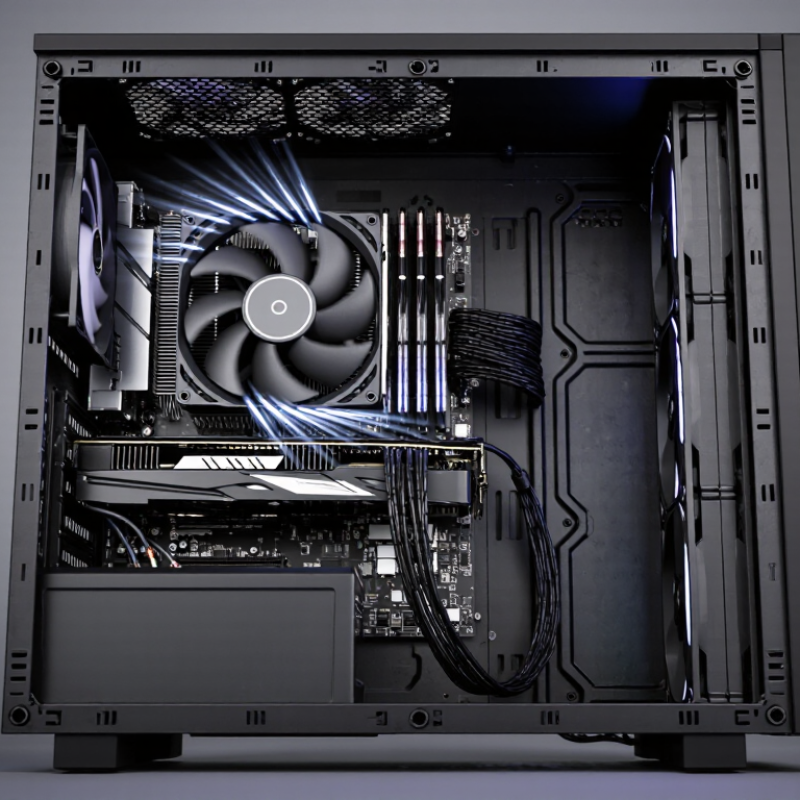
Why Is My CPU Cooling Fan So Loud?

What a Loud CPU Cooling Fan Reveals

A loud CPU cooling fan reveals more than annoyance. It often reports rising heat, restricted airflow, or an aggressive fan curve. A steady high-pitched whine usually means high rotational speed. Grinding or clicking can suggest bearing wear. Rattling may point to dust, a loose panel, or a cable touching the blades. I have also seen fans surge during light work when temperature sensors react too quickly. That is easy to misread as failure.

The wider industry explains why cooling deserves attention. The International Energy Agency’s Electricity 2024 report estimates global data centers used about 460 TWh in 2022. It projects demand could reach 620–1,050 TWh by 2026. The U.S. Department of Energy’s 2024 data-center report estimates American data centers used 176 TWh in 2023. These figures concern large facilities, not home computers. Still, they show how much energy becomes heat. In a desktop, check temperature, clock speed, and fan speed together. A loud fan with normal temperatures may only need a quieter curve. A loud fan with rising temperatures deserves investigation. My own mistake was cleaning the blades while ignoring blocked front intake vents.

Tips: Shut down and unplug the computer before cleaning. Use compressed air in short bursts, while holding the fan still. Check for dust in the heatsink fins. Confirm the cooler is firmly mounted. Replace a fan that grinds or wobbles. Record temperatures before changing settings, because memory prevents guesswork.

Why Is My CPU Cooling Fan So Loud?

What a loud CPU cooling fan reveals about workload, temperature, and airflow

Fan noise usually rises as CPU temperature and power increase. A sudden increase in noise during light use may indicate dust buildup, blocked vents, poor thermal contact, or restricted airflow. Sound levels shown are typical approximate readings measured about one metre from a desktop computer.

How to Identify the Source of the Fan Noise

Why Is My CPU Cooling Fan So Loud?

How to Identify the Source of the Fan Noise

A loud CPU fan does not always mean the CPU fan is responsible. I once blamed it too quickly. The graphics card, power supply, or case fans can create similar sounds. Shut down the computer, remove the side panel, and inspect the interior with a flashlight. Look for dust packed between the fan blades, loose cables, or a panel vibrating against the case.

Restart the computer and listen carefully from different areas. A steady rushing sound usually indicates high fan speed. A clicking, grinding, or rattling sound may suggest a worn bearing or a loose mounting screw. Do not touch moving blades. Instead, use a cardboard tube near your ear to narrow down the location. Keep the tube away from the fans.

Check the processor temperature with reliable monitoring software while the computer is idle and during normal use. A high temperature can trigger rapid fan changes, especially when airflow is blocked. Observe whether the noise begins immediately or only after several minutes. If temperatures remain normal but the noise continues, inspect the fan physically. A cable may be brushing the blades. The cooler may also be mounted unevenly. I sometimes overlook that simple cause. Clean dust with short bursts of compressed air, hold each fan still, and avoid forcing debris deeper into the system. If the sound remains mechanical, replacing the fan is safer than ignoring it.

Common Causes of Excessive CPU Fan Activity

Why Is My CPU Cooling Fan So Loud?

Common Causes of Excessive CPU Fan Activity

A loud CPU fan usually reacts to heat, not noise itself. Heavy workloads can raise processor temperature quickly during gaming, video editing, or large file compression. Background updates and unwanted browser tabs may also keep the processor busy. Open the system monitor and check processor usage before changing hardware. My first diagnosis was wrong once; a hidden task was responsible.

Dust is another common cause. It can coat the fan blades, block air vents, and reduce airflow through the cooler. A blocked intake often makes the fan spin faster, even when the computer feels only warm. Shut down the computer, disconnect power, and clean visible dust with suitable compressed air. Never force a fan to spin freely while cleaning. Small details matter.

Poor contact between the cooler and processor can create higher temperatures. Old thermal compound may dry out, but replacement is not always the first solution. A loose cooler, uneven mounting, or restricted case airflow may be the real problem. Check temperature readings under a repeatable workload, rather than trusting touch alone. If temperatures stay unusually high at low usage, inspect firmware fan settings or consider a failing fan bearing. Sensors can also misreport data, so compare readings from more than one reliable monitoring tool. I still leave room for doubt.

Steps to Reduce CPU Cooling Fan Noise

A loud CPU cooling fan usually signals heat, dust, poor airflow, or an aggressive fan curve. Check the processor temperature during idle and heavy tasks. Many modern systems stay safe below 85°C under sustained load, but sudden temperature spikes deserve attention. The U.S. Department of Energy’s 2024 data-center assessment estimates cooling can consume 30–40% of facility electricity. That figure shows why efficient airflow matters, even in a home computer.

Start by shutting down the computer and removing dust from the heatsink, intake vents, and rear exhaust. Use short bursts of compressed air. Hold the fan blades still; spinning them freely can damage the motor. Then inspect cable placement. A loose cable touching the blades creates a sharp, repetitive sound. In firmware settings, choose a gradual fan curve instead of maximum speed at every temperature. Replacing old thermal compound may help, but poor application can make temperatures worse. I have seen users apply too much and mistake the result for a failing fan.

Tips: Keep the computer on a hard, open surface. Leave several centimeters around every vent. Compare noise before and after each change. A simple phone sound meter can provide clues, though it is not laboratory equipment. ISO 7779 offers standardized computer-noise testing, so home readings should be treated as estimates. If the fan rattles, grinds, or pulses while temperatures remain normal, worn bearings may be responsible. Do not disable thermal protection just to silence it. That shortcut can turn a small noise problem into permanent hardware damage.

When Fan Noise Signals a Hardware Problem

Why Is My CPU Cooling Fan So Loud?

When Fan Noise Signals a Hardware Problem

A loud CPU fan is not always a cleaning issue. It can indicate rising temperature, blocked airflow, or a failing bearing. ASHRAE’s thermal guidelines place many air-cooled computing systems within an 18–27°C inlet range. A desktop repeatedly exceeding that range deserves attention, even when it still runs normally.

Listen to the pattern. A steady rush during gaming may reflect heavy processor usage. A sudden whine at idle is more concerning. Grinding, clicking, or a pulsing sound can point to worn bearings or unstable fan control. Dust packed between the heatsink fins feels like felt under a fingertip. It traps heat, forcing faster rotation. I once blamed the fan itself, but the real problem was a loose side panel disturbing airflow.

Check temperatures with a trusted monitoring tool, then compare idle and load readings. The U.S. Department of Energy reports that cooling can consume up to 40% of data-center electricity, showing how strongly heat affects energy demand. A home computer uses less power, but the physics remain similar. Clean vents carefully, confirm the fan spins smoothly, and inspect the cooler’s mounting pressure. Do not ignore thermal spikes.

Something may be wrong. A fan replacement can help, but it may only hide dried thermal compound, a failing motherboard sensor, or a cooler that has shifted. The Uptime Institute’s industry surveys repeatedly identify cooling and environmental conditions as major reliability concerns, although desktop symptoms are easier to overlook. That oversight is common.

Why Is My CPU Cooling Fan So Loud? — When Fan Noise Signals a Hardware Problem

Observed Fan Behavior Typical Sound Level Likely Cause Temperature Pattern Recommended Check or Fix Concern Level
Brief increase during startup or a demanding task 35–55 dBA Normal automatic fan-speed response to increased processor workload 45–85°C under changing loads Monitor whether the fan slows after the workload ends. Ensure ventilation openings are unobstructed. Usually normal
Fan runs loudly while the computer is idle 40–60 dBA Background applications, unwanted software, restricted airflow, or an aggressive fan-control setting 50–80°C at idle Check processor usage in the system monitor, close unnecessary processes, clean air vents, and review cooling settings. Needs checking
Constant high-speed airflow with little change in pitch 45–65 dBA Dust-clogged heatsink, poor case ventilation, improperly mounted cooler, or inadequate thermal transfer 70–95°C during ordinary use Power down safely, remove dust with compressed air, verify that the cooler is firmly mounted, and inspect thermal interface material if necessary. Needs checking
Rattling, grinding, or scraping noise 35–70 dBA Worn fan bearing, damaged fan blade, loose mounting screw, or cable touching the blades May be normal or elevated Turn off the system and inspect the fan and surrounding cables. Replace a damaged or worn fan rather than lubricating a sealed bearing. Hardware warning
Repeated clicking or intermittent ticking 30–60 dBA Blade obstruction, loose fan housing, failing fan motor, or a cable intermittently contacting the fan Usually variable Inspect while the system is powered off. Do not place fingers near a moving fan. Replace the fan if the noise returns after clearing obstructions. Hardware warning
Fan repeatedly speeds up and slows down every few seconds 35–65 dBA Rapid temperature fluctuations, an overly sensitive fan curve, unstable sensor readings, or cooler contact problems Fluctuates by more than 10°C quickly Check temperatures and processor load, update system firmware if appropriate, and use a less aggressive fan curve only after confirming temperatures are safe. Needs checking
Very loud fan followed by freezing, shutdown, or restart 50–75 dBA Thermal throttling or overheating caused by blocked airflow, cooler failure, poor mounting, or a failed fan Approaches 95–100°C on many modern processors Stop intensive use, allow the system to cool, check the cooler and airflow, and seek repair if high temperatures persist. Urgent
Fan noise begins after several months of use and gradually worsens 40–70 dBA Accumulated dust, aging bearings, degraded thermal interface material, or increased ambient temperature Higher than previous readings under the same workload Clean the cooling path, compare temperatures with earlier readings, and replace the fan or renew the thermal interface material when required. Needs checking
High-pitched electronic whine without obvious airflow noise 25–50 dBA Electrical coil noise from power circuitry rather than the CPU fan itself Often normal Confirm the sound source by listening near the fan and power circuitry without touching components. Seek service if accompanied by burning odor, instability, or visible damage. Verify source
Sound levels are approximate and depend on measurement distance, room acoustics, fan size, and workload. Temperature values are general reference ranges; the processor manufacturer's specified maximum temperature should take priority.

Stay in touch with the latest National Luna Products and News!